You start a movie on Netflix and the picture looks blurry for the first few seconds. Then it settles, sometimes in high definition, sometimes not. This is normal: Netflix assesses your connection in real time and adjusts the resolution as playback continues. Understanding how this works helps you choose the right setting for your situation, rather than defaulting to 4K.
AV1 codec and HDR compatibility: what really determines Netflix picture quality
The displayed resolution depends on more than just your subscription or screen. Netflix pairs 4K and HDR10+ with the AV1 codec, which is supported only by certain devices. On Samsung TVs, for example, Dolby Vision is not available: HDR10+ takes its place, provided the model is AV1-compatible.
Before changing any settings, check the page for the title you’re watching. It shows the formats available on your device. If the Dolby Vision or HDR badge doesn’t appear, it doesn’t mean your TV is set up incorrectly. The HDR format depends on the title and the device being used.
If you want to adjust Netflix picture quality precisely, first identify what your equipment supports before changing the bitrate options.
Netflix settings for your viewing habits: big screen, mobile, or shared connection
There’s no visual benefit to targeting 4K on a five-inch smartphone. Conversely, sticking with the “Low” setting on a living room TV can seriously detract from the experience. The right setting depends on three practical factors.
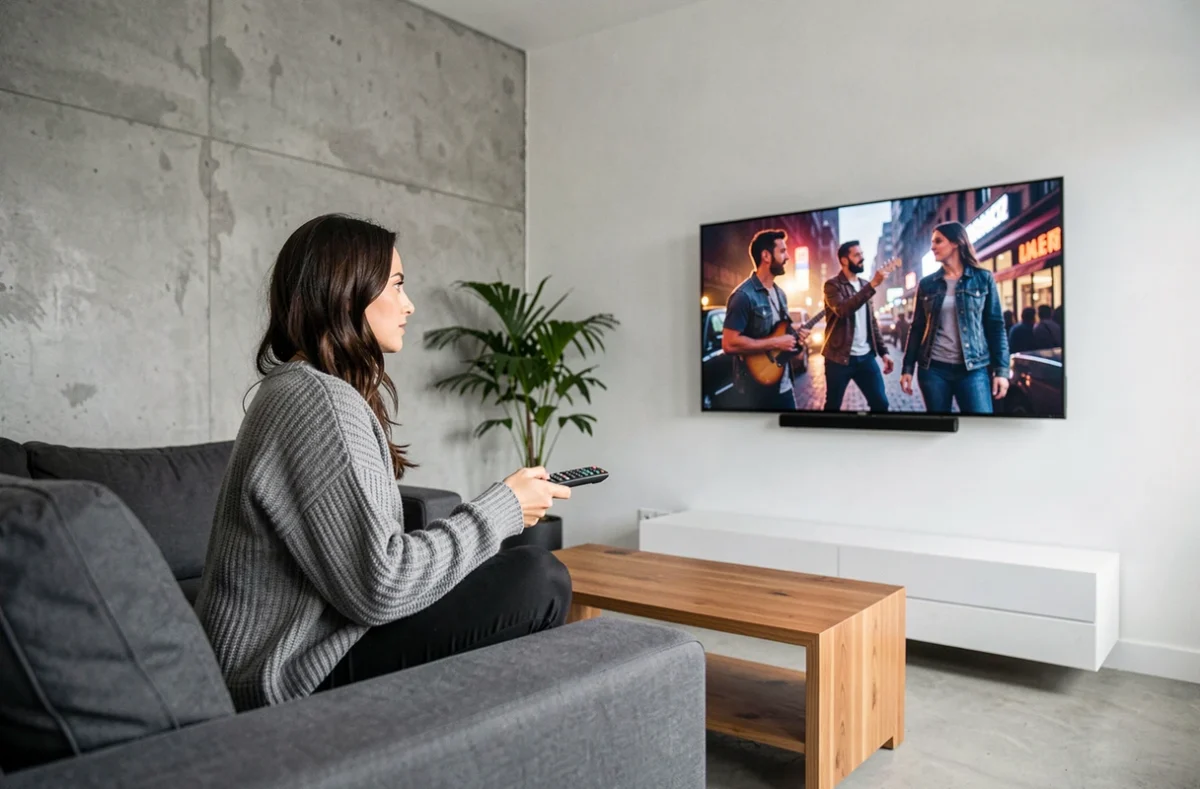
- Large screen at home: Choose “High” or “Auto” if your connection is stable. The difference between HD and 4K is clearly visible on screens larger than 40 inches, especially with HDR content.
- Mobile viewing with a limited data allowance: The “Low” or “Save Data” setting limits data usage. On a small screen, the loss of sharpness is barely noticeable.
- Connection shared between multiple users: If several people in your household use the same router to stream at the same time, “Auto” mode distributes the bandwidth. Manually setting every profile to “High” may cause buffering for everyone.
Have you noticed that Netflix sometimes starts in poor quality and then improves after a few seconds? Playback starts at a low resolution while Netflix assesses your connection speed. If the picture remains poor for more than about 30 seconds, the issue is probably your connection or the number of devices connected.
Netflix quality settings by device: Android, iOS, and browser
Access to settings varies by device. In the mobile app (Android and iOS), open your profile, then go to “App Settings” and “Cellular Data Usage.” You’ll find four options: Auto, Wi-Fi Only, Save Data, and Maximum Data.
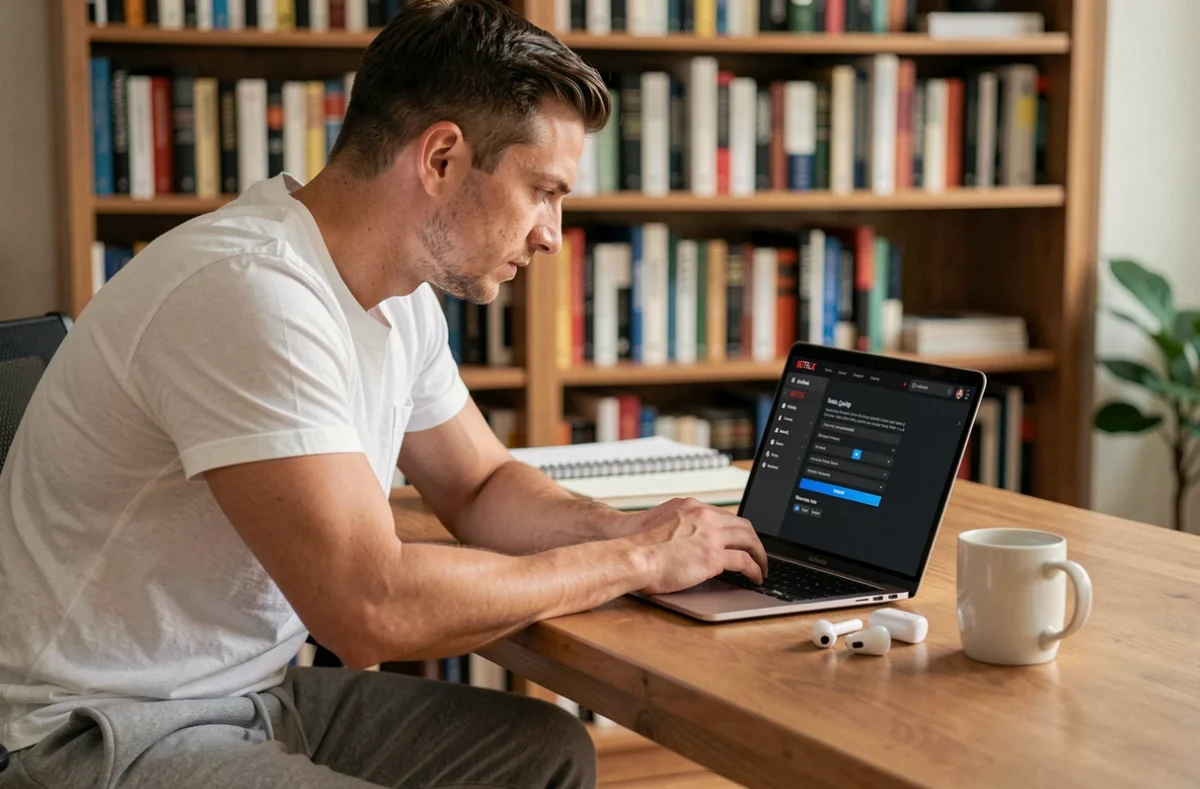
In a desktop browser, go to the Netflix website, select “Account,” then “Playback settings” for the relevant profile. Choose from Auto, Low, Medium, and High. The maximum resolution varies depending on the browser you use. Some browsers limit playback to 720p, while the Windows app can support higher resolutions.
On a TV, settings are usually found in the Netflix app menu under “Settings,” or through your online account. Recent smart TVs manage picture quality automatically when “Auto” mode is enabled.
Why compare the app and browser
If you watch Netflix on a computer and the picture looks less sharp than on your TV, your browser may be the cause. The Netflix app often supports a higher maximum resolution than the browser. Trying both can help you determine whether the issue is with the setting or the playback platform itself.
Troubleshooting persistent blurry picture on Netflix
A temporary drop in quality when a title starts isn’t a reason to reconfigure everything. However, if the picture stays blurry or regularly becomes blurry again during playback, it’s worth checking a few things.
- Test your actual connection speed with a speed test tool. Netflix recommends a minimum speed for each resolution tier.
- Check how many devices are connected to your network. A 4K stream uses much more bandwidth than an SD stream.
- Check the quality setting in the relevant profile’s settings. Another household member may have changed it.
- On a TV, make sure your HDMI cable supports 4K if your set-top box or streaming device is capable of it.
For an accurate diagnosis, check after 30 seconds of playback, not as soon as it starts. The initial blur is normal behavior for Netflix’s adaptive bitrate system.
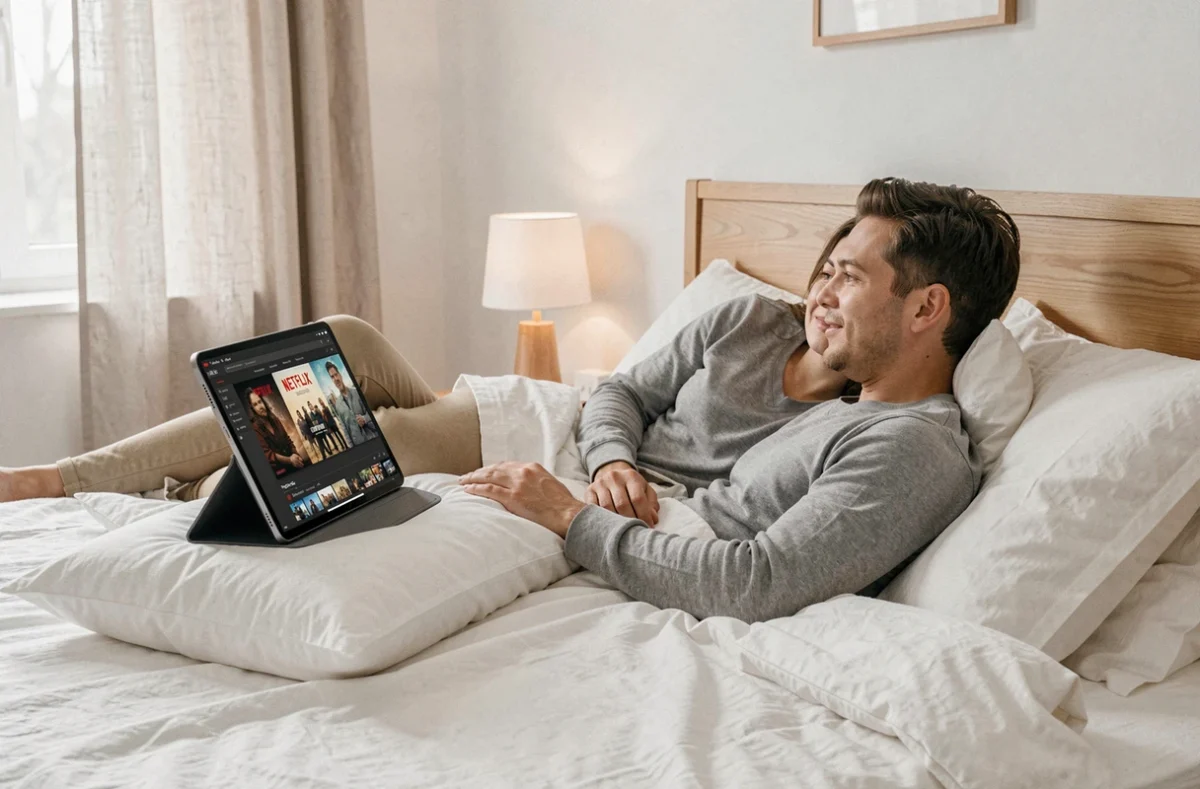
Choosing the right Netflix quality setting starts with knowing the limits of your equipment and connection. “Auto” works well in most situations. For mobile viewing with a limited data plan, manually lowering the quality helps preserve your data allowance without compromising the viewing experience on a small screen.